Using Git for Version Control on PythonAnywhere
This is a step step process on how to commit in github using PythonAnywhere Bash console
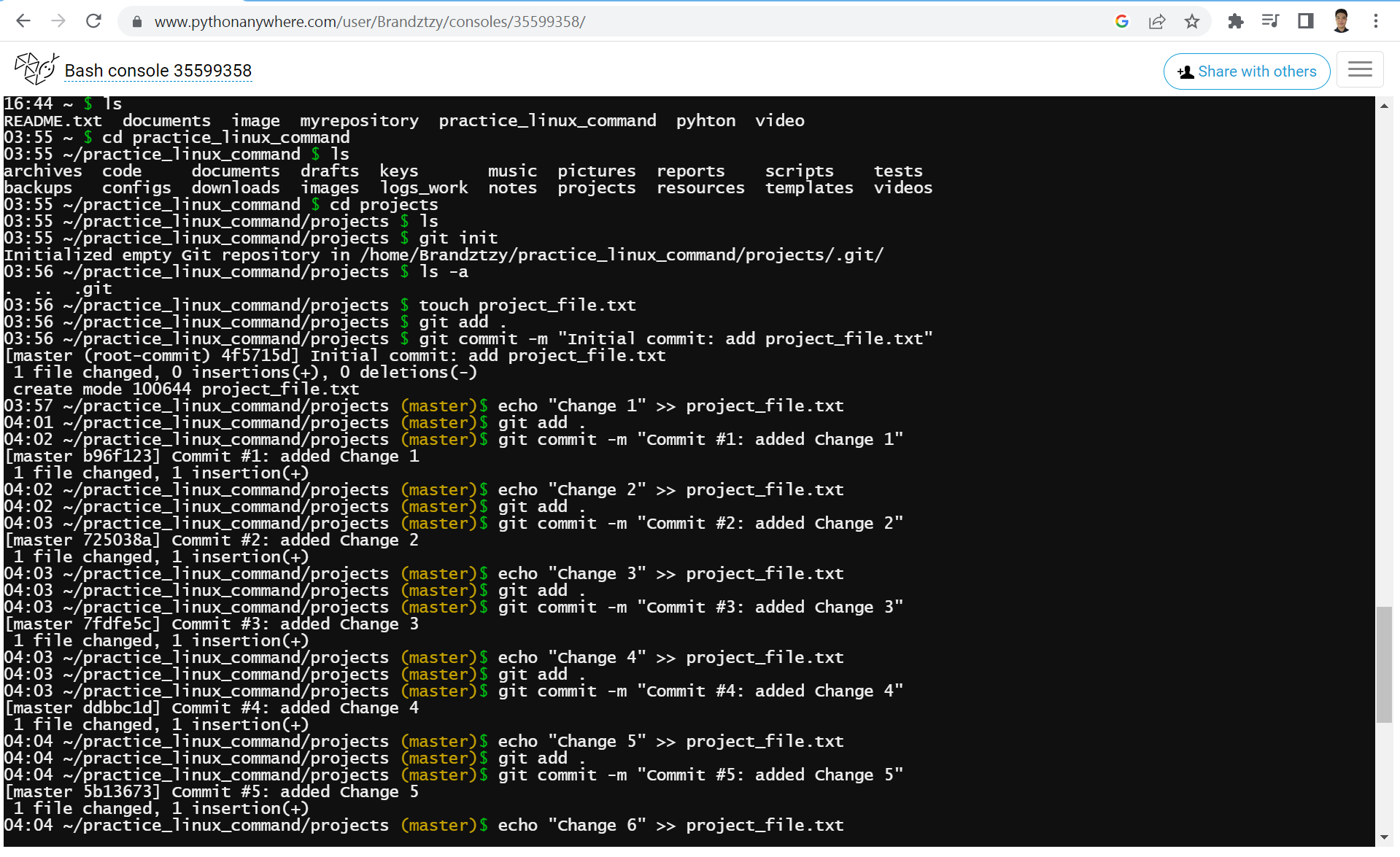
Initializing Git
First go to pythonanywhere.com and login to your account
Second go to the Bash console
Third list all the directories or folder save on your Bash console to list it use the
lscommandFourth go to the directory projects to go or change the directories use
cd foldernamecommandFifth initialize git to initialize it use
git initcommand and to verify it if you have git in your folder usels -acommand so you can see if you have the .git folderSixth create a new file name project_file.txt to create it use
touch project_file.txtcommand and add it to git staging area to add it usegit add .commandSeventh commit it using the
git commit -m "Initial commit: add project_file.txt"command
Making changes to the file and committing 10 times
Modify the file using
echo “Change 1” >> project_file.txtcommandAfter add it to the git staging area using
git add .command orgit add project_file.txtcommandAnd then commit it using
git commit -m "Commit #1: added Change 1"commandThen modify the file again using
echo "Change 2" >> project_file.txtAfter add it to the git staging area using
git add .command orgit add project_file.txtcommandAnd then commit it using
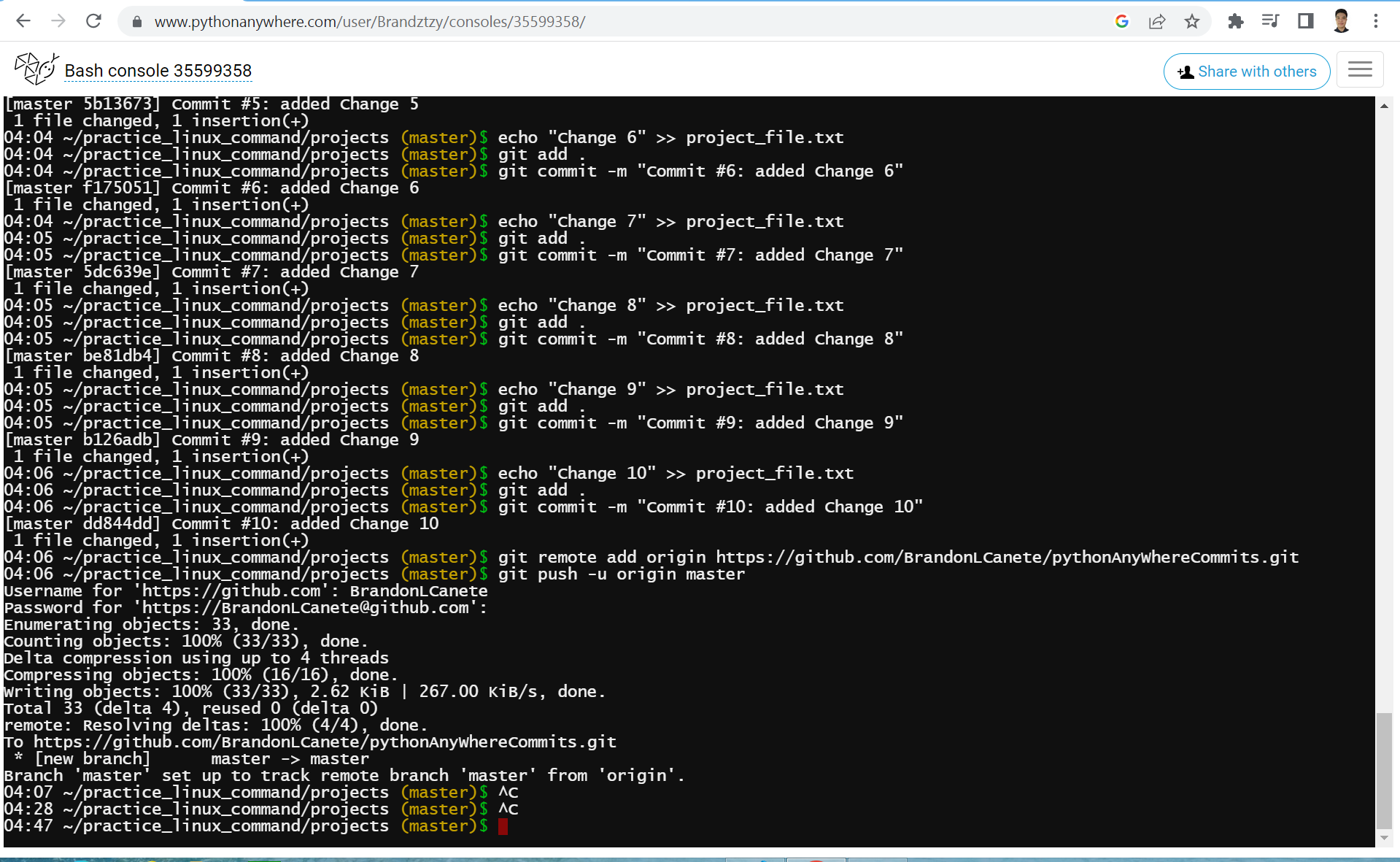
git commit -m "Commit #2: added Change 2"commandDo this process until you get to commit #10
Adding a remote repository and pushing the code to GitHub
Now make a Github Repository and then copy the
git remote add origincommand that you will see it will be like thisgit remote add originhttps://github.com/BrandonLCanete/pythonAnyWhereCommits.gitthis command will add your github repository so that you can push your code to githubBut before you push it go to your Github settings find Developer settings and then click the Personal Access Tokens and then click the Tokens (classic) and then find the Generate new token and click the Generate new token (classic) and then when you see note add your token name and then choose the expiration date of your token click the repo part and the next part is for you to decide if you want it or not if you want it click it and if not don’t click it go down and find the Generate Token green button and after that copy the token code and don’t forget it because you will see it only one time you can save it to notepad
Now go back to your pythonanywhere bash console and do the
git push -u origin mastercommand and now you will see a username input your github username account and enter it after that you will see a password to do it copy your token code and paste it to the bash console and enter it now go back to your github repository and verify it if your code is now push to the github repository
Code Snippet